Overview
Implement persistent data storage using the Chrome Storage API, allowing notes to survive browser restarts and sync across devices. This lesson covers storage areas (local vs sync), data structures for per-page notes, async operations, and WXT’s simplified storage helpers.
By the end, TabNotes will save notes as users type and load them automatically when reopening the popup.
What You’ll Learn
- Use the
chrome.storageAPI for data persistence - Choose between local, sync, and session storage areas
- Structure data for per-page note storage using URL keys
- Handle async storage operations safely
- Extract domain/path from URLs for consistent note keys
- Load existing notes when popup opens
- Use WXT’s storage helper for cleaner code
- Debug storage using Chrome DevTools
The Storage Problem
Current State: Popup collects notes via textarea, but they vanish when the popup closes.
Why localStorage Doesn’t Work:
Browser extensions can’t use standard localStorage - each popup instance is a new execution context with no shared state.
Solution: Chrome provides the chrome.storage API specifically for extensions, with three storage areas optimized for different use cases.
Understanding Storage Areas
Chrome extensions offer four storage types with different sync behaviors and limits:
| Storage Area | Syncs Across Devices? | Persists After Restart? | Size Limit | Use Case |
|---|---|---|---|---|
local | No | Yes | 10 MB | Machine-specific data |
sync | Yes (if signed into Chrome) | Yes | 100 KB | User preferences/settings |
session | No | No (cleared on restart) | 10 MB | Temporary session data |
managed | - (IT controlled) | Yes | Varies | Enterprise policies |
Choosing the Right Storage
For TabNotes: Use sync storage so notes sync across users’ devices when signed into Chrome.
Trade-off: Sync storage has tighter limits (100KB vs 10MB), but that’s plenty for text notes. Typical note: ~500 bytes × 200 notes = ~100KB.
When to use local:
- Large data (images, cached content)
- Machine-specific settings (local file paths)
- Data that shouldn’t sync
When to use session:
- Temporary state during browser session
- Data that doesn’t need persistence
Configuring Storage Permission
Add the storage permission in wxt.config.ts:
// wxt.config.ts
export default defineConfig({
  manifest: {
    permissions: ['storage', 'tabs']
    //            ^^^^^^^^ Required for chrome.storage API
  }
});
Why explicit permission? Storage access could be used for tracking, so Chrome requires user consent.
Basic Storage API Usage
Saving Data
// Save to sync storage
await browser.storage.sync.set({
  myKey: 'myValue'
});
Retrieving Data
// Load from sync storage
const result = await browser.storage.sync.get('myKey');
console.log(result.myKey);  // 'myValue'
Why browser Not chrome?
WXT is browser-agnostic. browser.storage works in both Chrome and Firefox. WXT polyfills it automatically.
Viewing Storage in DevTools
Accessing Extension Storage
- Navigate to
chrome://extensions - Find your extension, click Inspect service worker
- Open Application tab
- Expand Extension Storage in left sidebar
- Click sync or local to view stored data
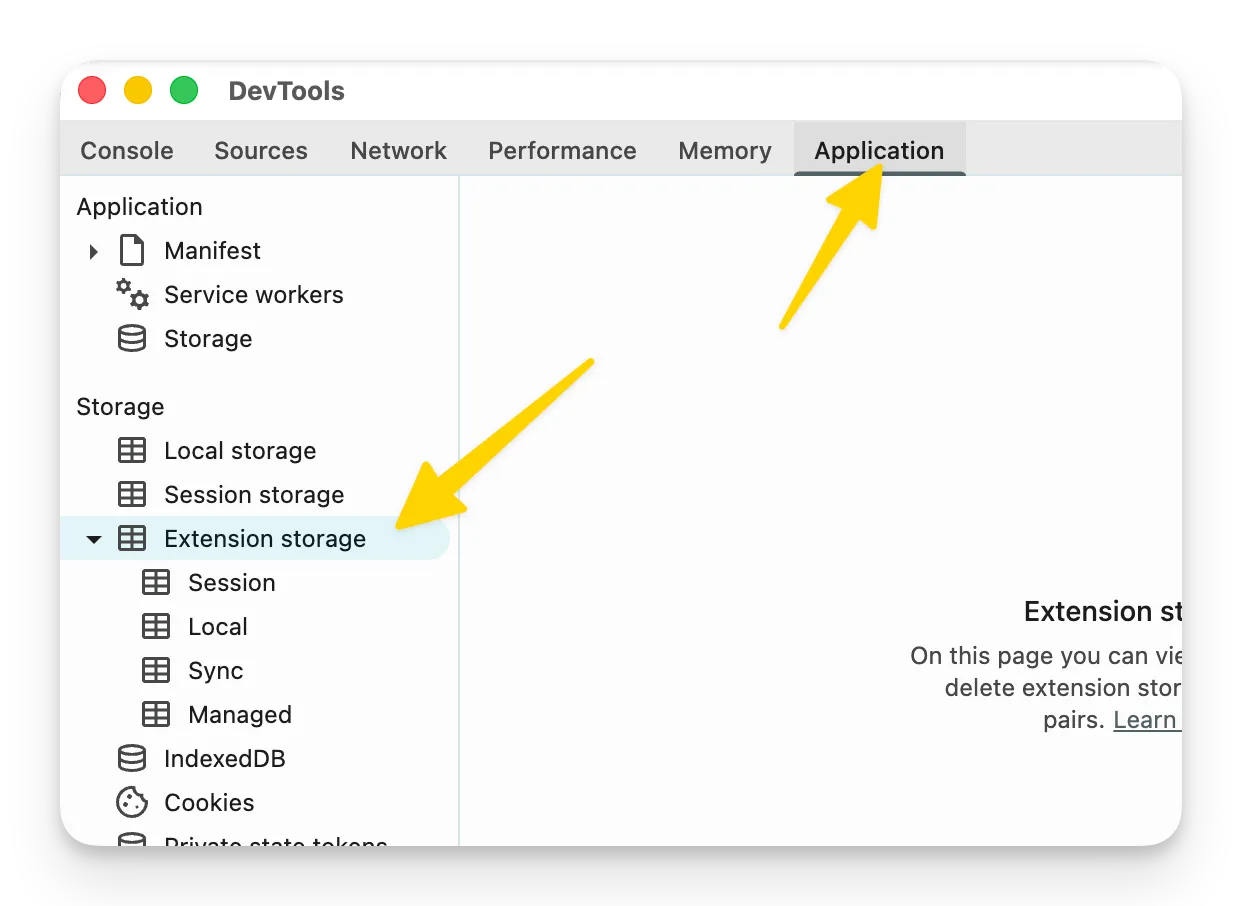
Real-time Updates: Data appears instantly when saved via storage.set().
Implementing Note Storage
Challenge: Store Notes Per Web Page
We need to:
- Identify which page the user is on
- Save notes with a page-specific key
- Load the correct note when switching pages
Step 1: Get the Current Tab URL
Use the tabs API to identify the active page:
// entrypoints/popup/main.ts
const [tab] = await browser.tabs.query({
  active: true,
  currentWindow: true
});

if (!tab || !tab.url) return;  // Safety check
console.log('Current URL:', tab.url);
Why array destructuring [tab]?
browser.tabs.query() always returns an array (even when matching one tab). Destructuring extracts the first result.
Why the safety check?
- Query might return empty array (unlikely but possible)
- Some tabs don’t have URLs (e.g.,
chrome://pages) - TypeScript enforces null checks for safer code
Step 2: Create a Page Key Function
URLs can have query strings (?id=123) and hash fragments (#section). We want to treat these as the same page:
// entrypoints/popup/main.ts
const getPageKey = (url: string): string => {
  const urlObj = new URL(url);
  return urlObj.hostname + urlObj.pathname;
};

// Examples:
// 'https://example.com/page?id=1' → 'example.com/page'
// 'https://example.com/page#top' → 'example.com/page'
// Both get the same key: 'example.com/page'
Why ignore query/hash?
- Users expect notes to persist for the “same page”
example.com/article?id=123andexample.com/article?id=456are different articles (different notes)- But
example.com/article#section1andexample.com/article#section2are the same article (same note)
Adjust this logic based on your use case. For TabNotes, we ignore both query and hash for simplicity.
Step 3: Structure Note Data
Store three fields per note:
const noteData = {
  note: noteText.value,                    // User's text
  createdAt: new Date().toISOString(),     // ISO timestamp
  updatedAt: new Date().toISOString()      // ISO timestamp
};
Why ISO strings?
chrome.storage only accepts JSON-serializable data. Date objects aren’t JSON-safe:
// ❌ This fails silently
await browser.storage.sync.set({ date: new Date() });

// ✅ This works
await browser.storage.sync.set({ date: new Date().toISOString() });
Step 4: Organize Storage Structure
Anti-pattern: Create one storage key per page:
{
  "example.com/page1": { "note": "..." },
  "example.com/page2": { "note": "..." },
  "github.com/repo": { "note": "..." }
}
Problem: Can’t have other keys like settings without collision risk.
Better Pattern: Use a namespace object:
{
  "notesStorage": {
    "example.com/page1": { "note": "...", "createdAt": "...", "updatedAt": "..." },
    "example.com/page2": { "note": "...", "createdAt": "...", "updatedAt": "..." }
  },
  "settings": {
    "theme": "dark"
  }
}
All notes live under notesStorage key, leaving room for other extension data.
Complete Save Implementation
// entrypoints/popup/main.ts
import './style.css';

document.querySelector<HTMLDivElement>('#app')!.innerHTML = `
  <div class="sticky-note">
    <form class="note-form">
      <textarea
        id="note-text"
        placeholder="Write your note here..."
      ></textarea>
    </form>
  </div>
`;

const getPageKey = (url: string): string => {
  const urlObj = new URL(url);
  return urlObj.hostname + urlObj.pathname;
};

const noteText = document.querySelector<HTMLTextAreaElement>('#note-text')!;

noteText.addEventListener('keyup', async () => {
  // Get current tab
  const [tab] = await browser.tabs.query({
    active: true,
    currentWindow: true
  });

  if (!tab || !tab.url) return;

  // Generate page key
  const pageKey = getPageKey(tab.url);

  // Load existing notes object (or create empty)
  const result = await browser.storage.sync.get('notesStorage');
  const notesStorage = result.notesStorage || {};

  // Update or create note for this page
  const existingNote = notesStorage[pageKey];
  notesStorage[pageKey] = {
    note: noteText.value,
    createdAt: existingNote?.createdAt || new Date().toISOString(),
    updatedAt: new Date().toISOString()
  };

  // Save back to storage
  await browser.storage.sync.set({ notesStorage });
});
Key Logic:
- Load existing notes:
get('notesStorage')retrieves the entire notes object - Preserve createdAt: Use existing timestamp if note already exists, otherwise create new
- Always update updatedAt: Record when note was last modified
- Save entire object:
set({ notesStorage })persists all notes
Loading Existing Notes
When the popup opens, load the note for the current page:
// entrypoints/popup/main.ts

// ... previous code ...

const loadExistingNote = async () => {
  const [tab] = await browser.tabs.query({
    active: true,
    currentWindow: true
  });

  if (!tab || !tab.url) return;

  const pageKey = getPageKey(tab.url);
  const result = await browser.storage.sync.get('notesStorage');
  const notesStorage = result.notesStorage || {};

  // Load note if exists for this page
  if (notesStorage[pageKey]) {
    noteText.value = notesStorage[pageKey].note;
  }
};

// Load note when popup opens
loadExistingNote();
Testing:
- Open popup on
https://github.com - Type “GitHub note”
- Close popup
- Reopen popup on same page
- Note loads automatically
Using WXT’s Storage Helper
WXT provides a cleaner storage API that handles prefixes and type safety:
// entrypoints/popup/main.ts
import { storage } from 'wxt/storage';

// Save data
await storage.setItem('sync:notesStorage', notesStorage);

// Load data
const notesStorage = await storage.getItem('sync:notesStorage') || {};
Benefits:
- Prefix syntax (
sync:,local:,session:) determines storage area - Automatic TypeScript typing
- Cleaner than
browser.storage.sync.get/set
Refactored Save Logic
import { storage } from 'wxt/storage';

noteText.addEventListener('keyup', async () => {
  const [tab] = await browser.tabs.query({
    active: true,
    currentWindow: true
  });

  if (!tab || !tab.url) return;

  const pageKey = getPageKey(tab.url);
  const notesStorage = await storage.getItem('sync:notesStorage') || {};

  const existingNote = notesStorage[pageKey];
  notesStorage[pageKey] = {
    note: noteText.value,
    createdAt: existingNote?.createdAt || new Date().toISOString(),
    updatedAt: new Date().toISOString()
  };

  await storage.setItem('sync:notesStorage', notesStorage);
});
Switching storage types: Change sync: to local: or session: - that’s it!
Debugging Storage
Common Issues
Notes not saving:
- Check DevTools → Application → Extension Storage
- Verify
storagepermission in manifest - Ensure
awaitbeforestorage.set()
TypeError: Cannot read ‘note’ of undefined:
// ❌ Assumes note exists
noteText.value = notesStorage[pageKey].note;

// ✅ Safe with optional chaining
noteText.value = notesStorage[pageKey]?.note ?? '';
Storage quota exceeded:
- Sync storage: 100KB limit
- Local storage: 10MB limit
- Check DevTools → Application → Extension Storage for current usage
Storage Best Practices
1. Batch Storage Operations
❌ Don’t: Save on every keystroke
noteText.addEventListener('keyup', async () => {
  await storage.setItem(...)  // Writes to disk every keystroke
});
✅ Better: Debounce saves
let saveTimeout: number;
noteText.addEventListener('keyup', () => {
  clearTimeout(saveTimeout);
  saveTimeout = setTimeout(async () => {
    await storage.setItem(...)  // Writes after 500ms of inactivity
  }, 500);
});
For simplicity, this course saves on every keystroke. For production, implement debouncing.
2. Validate Data Before Storage
// Ensure data is JSON-serializable
const noteData = {
  note: noteText.value,
  // ❌ Don't store Date objects
  createdAt: new Date(),
  // ✅ Store ISO strings
  createdAt: new Date().toISOString()
};
3. Handle Storage Errors
try {
  await storage.setItem('sync:notesStorage', notesStorage);
} catch (error) {
  console.error('Storage failed:', error);
  // Show user notification
}
What’s Next
Notes now persist across sessions and sync across devices. The extension is functional but lacks visual feedback - users can’t tell which pages have notes without opening the popup.
Lesson 7 adds dynamic icon changes, displaying a different icon when the current page has saved notes, providing instant visual feedback.